Microsoft Identity and Access Management Solutions
Introduction
This lab explores core components of Microsoft’s identity and access management solutions, including Microsoft Entra ID (formerly Azure AD), Self-Service Password Reset (SSPR), Conditional Access, and Privileged Identity Management (PIM). Through hands-on tasks, I configured user settings, enabled audit logging, enforced access policies, and managed privileged roles to strengthen cloud security posture.
Objectives
- Configure Microsoft Entra ID user settings and roles
- Enable Microsoft 365 audit logging and file monitoring
- Implement Self-Service Password Reset (SSPR)
- Create Conditional Access policies
- Manage privileged roles using PIM
Prerequisites
- Azure subscription with admin access
- Skillable lab environment
- Familiarity with Microsoft 365 and Azure Portal
Walkthrough
Task 1: Sign In to Microsoft Entra Admin Center
- Accessed the Microsoft Entra admin portal
- Verified tenant and user access
📸 Screenshot: Admin sign-in to Microsoft Entra
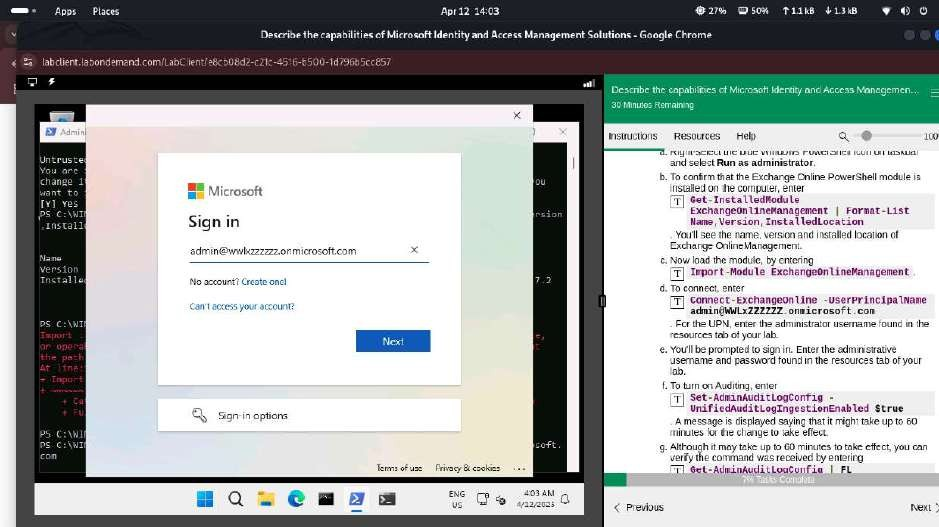 Sign In
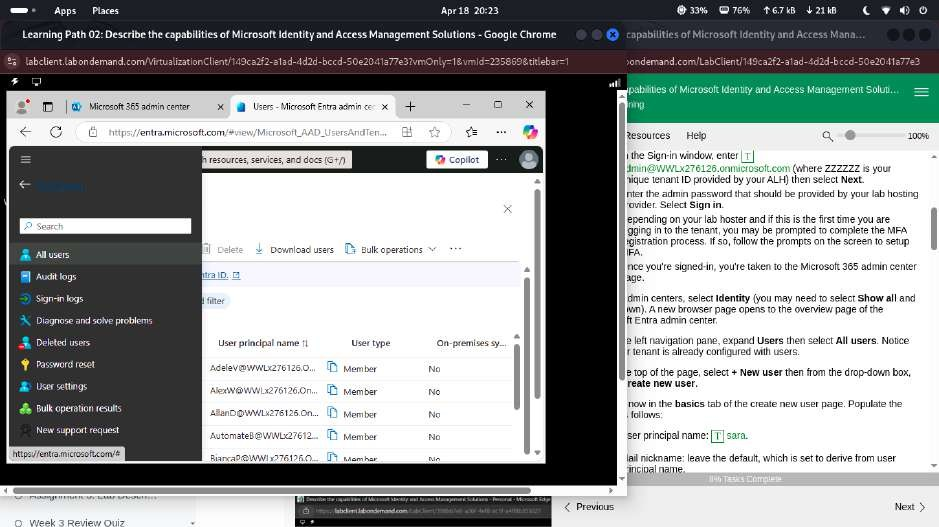
Task 2: Explore User Settings
- Navigated to Users > All Users
- Reviewed user roles and authentication methods
- Modified settings for selected accounts
📸 Screenshot: Viewing user settings
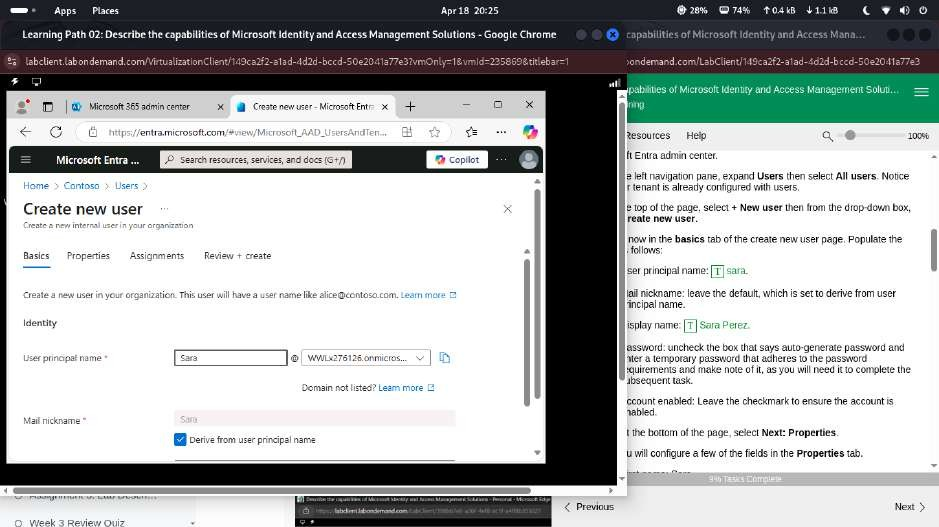 User Settings
Task 3: Enable Microsoft 365 Audit Logging
- Opened Microsoft 365 Defender > Audit
- Verified audit logging was already enabled
- Enabled file monitoring for compliance
📸 Screenshot: Audit log status
 Audit Log
📸 Screenshot: File monitoring enabled
 File Monitoring
Task 4: Configure Self-Service Password Reset (SSPR)
- Accessed Password Reset > Properties
- Enabled SSPR for all users
- Defined authentication methods (email, phone)
📸 Screenshot: SSPR configuration
 SSPR Properties
Task 5: Test SSPR Functionality
- Simulated password reset from user portal
- Verified multi-factor authentication prompts
- Confirmed successful password change
📸 Screenshot: Reset process flow
 SSPR Reset
Task 6: Create Conditional Access Policy
- Navigated to Security > Conditional Access
- Created policy targeting risky sign-ins
- Required MFA for access to sensitive apps
📸 Screenshot: Policy creation
 Conditional Access
Task 7: Assign Conditions and Controls
- Selected user group and cloud apps
- Applied sign-in risk condition
- Enabled control: Require MFA
📸 Screenshot: Assigning controls
 Access Controls
Summary
This lab successfully demonstrated Microsoft’s identity and access management capabilities. SSPR enabled user autonomy, Conditional Access enforced adaptive security, and audit logging ensured compliance tracking.